# 🦋 Workshop overview
# Agenda
**UTC Converter: Please click [this link](https://www.timeanddate.com/worldclock/converter.html?iso=20251124T041500&p1=1440&p2=tz_bst-bangladesh&p3=389&p4=tz_aft&p5=tz_npt&p6=tz_pkt&p7=tz_ist) to check your local time.**
[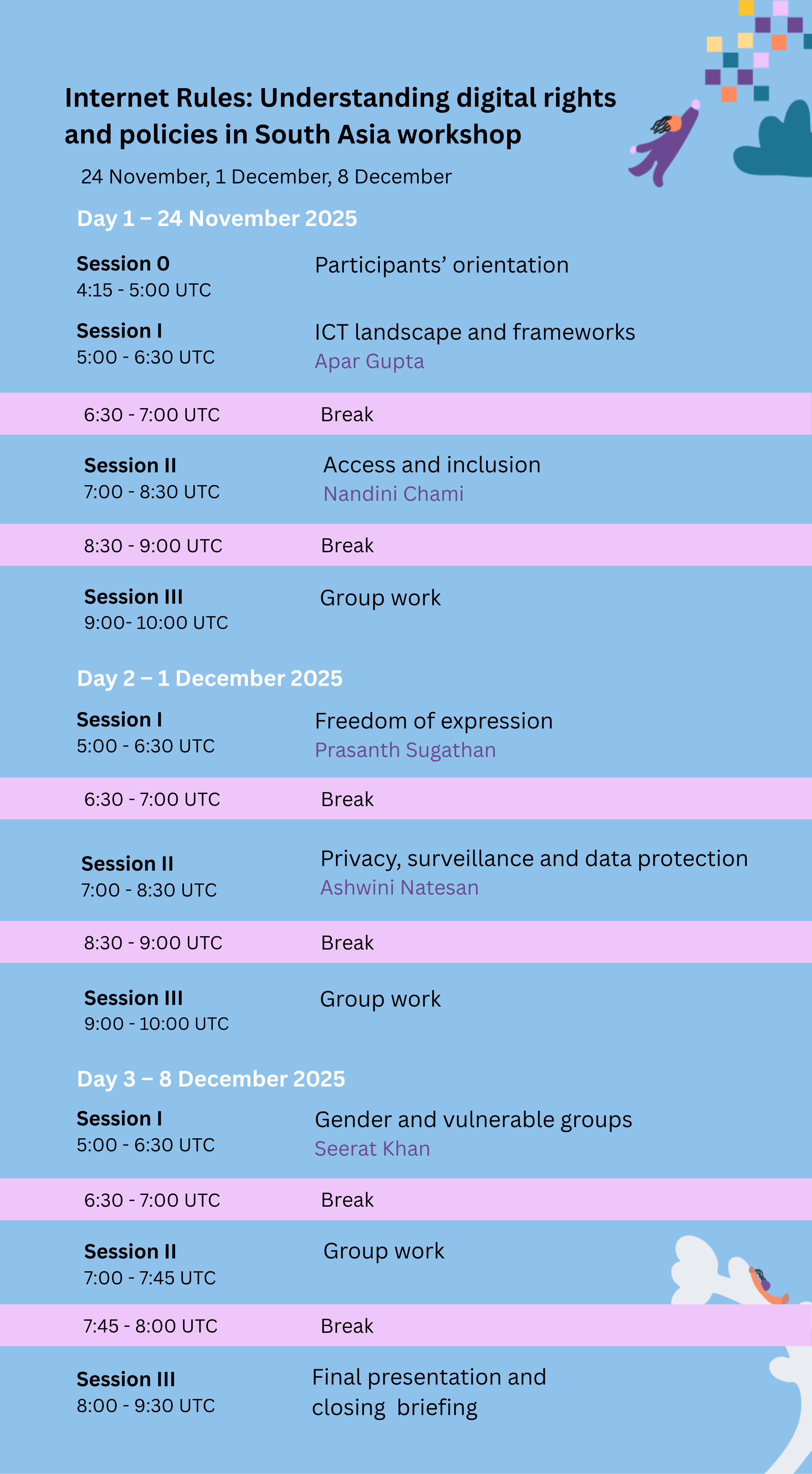](https://wiki.asia.apc.org/uploads/images/gallery/2025-11/internet-rules-agenda-sa.png)
# Zoom link to workshop and instructions to use zoom
#### Our Zoom space
**Our workshop will take place at: [https://apc-org.zoom.us/j/89259454824](https://apc-org.zoom.us/j/89259454824)**
- - - - - -
#### Tips for participation in Zoom sessions
- **Update your [Zoom client](https://zoom.us/download#client_4meeting)** to the latest version. The zoom app takes 5 minutes to install, so please set it up before the sessions.
- Please **join the sessions before they start (we have 60 minutes for that)**, so we can assist you if you experience any issue.
- Please **use your real name or nickname,** so we can know who you are and let you in. You can **change your name after you have joined**.
- **Please use headphones with microphone rather bluetooth headphones where possible.**
- **Please mute your microphone** when entering a session and **unmute only when you want to speak**.
- If you **need a break** during the sessions, **take it**.
#### How to use zoom
Join the workshop session by opening [the link](https://apc-org.zoom.us/j/88118144206) in your browser, a client or an app. You will be redirected to the correct zoom room with the waiting room. When the host will adds you to the meeting you will be able to see the main screen.

#### Configure Audio
If your audio is not working, please **check your settings**.
For **Audio** click on the **up arrow next to Unmute/Mute button** and check if your Microphone and Speaker have been correctly configured.

To test Speaker and Microphone click on Audio Settings in the same menu and click on the link Test Speaker and Microphone.

In the window that opens you can Test the Speaker and Microphone and select the volume.

#### Configure Video
If your video is not working when you click Start Video, please **check your settings**.
Click on the up arrow next to Start Video and see if Camera is selected.
[](https://wiki.convening.apc.org/uploads/images/gallery/2020-10/zoom-video-sharing-button.png)
If you would like to examine settings in more detail, click on the last option **Video Settings...** and the following window will open.
[](https://wiki.convening.apc.org/uploads/images/gallery/2020-10/zoom-video-settings.png)
Here you can define how your video should be presented and we recommend you select the option **Hide Non-video Participants** so that you will be able to see only the videos of participants who have their cameras enabled.
#### Chat
Zoom enables you to participate in **public chat** and also s**end private messages** to specific participants. To send a private message select the participant in the dropdown field which is by default set to Everyone (for public chat).

#### Share screen...
If you need to share screen, portion of the screen, computer audio or 2nd camera you can do that by clicking on a green icon Share screen and select the window, program, computer sound or 2nd camera in Basic or Advanced tabs.


If you select the wrong window you can always stop sharing and then start sharing the intended one.
# Organisers' contact details
**The team can be reached at **